How to Mock Up a Kitchen Refresh With Gemini Before Getting Contractor Quotes
Use Gemini on desktop or mobile to turn one current kitchen photo into a few believable refresh directions so you can narrow scope before asking contractors for quotes.
Workflow summary
Quote this workflow accurately
- Best for
- Operators who need a repeatable, practical workflow instead of a blank prompt.
- Input
- One clear photo of the current kitchen A Gemini account on desktop web or the Gemini mobile app Basic knowledge of what must stay fixed, such as appliance placement, cabinet footprint, windows, doors, and room layout
- Primary tool
- Gemini
- Output
- Use Gemini on desktop or mobile to turn one current kitchen photo into a few believable refresh directions so you can narrow scope before asking contractors for quotes.
- Main risk
- The kitchen suddenly looks larger than real life
- Verification step
- the kitchen shape still matches the real room no impossible window, island, or floor space changes appeared appliances and cabinets still look proportional
Continue from this article
If you ask contractors for quotes before you know what kind of kitchen update you actually want, the conversation gets messy fast. You end up talking through vague ideas, comparing apples to oranges, or collecting estimates for features you might not even choose. This workflow is for agents, investors, owner-operators, and home sellers who want a clear visual direction first.
Warning: This workflow creates visual concepts and draft planning assets for review. Double-check that every final image accurately reflects the property and does not mislead buyers, renters, contractors, or owners. Do not remove defects, fake square footage, invent windows, move plumbing or appliances in a way the home does not support, or present these images as final construction plans.
Problem this solves and who it is for
Use this when you already have a real kitchen photo and want a few believable refresh concepts before getting contractor quotes. It is most useful when you need to narrow the style direction, decide how much of the existing kitchen should stay, and show other stakeholders what you mean without writing a long explanation.
Prerequisites
- One clear photo of the current kitchen
- A Gemini account on desktop web or the Gemini mobile app
- Basic knowledge of what must stay fixed, such as appliance placement, cabinet footprint, windows, doors, and room layout
- A place to save concept images and short notes
- Enough discipline to treat AI images as concepts, not construction documents
How to capture or gather the source material
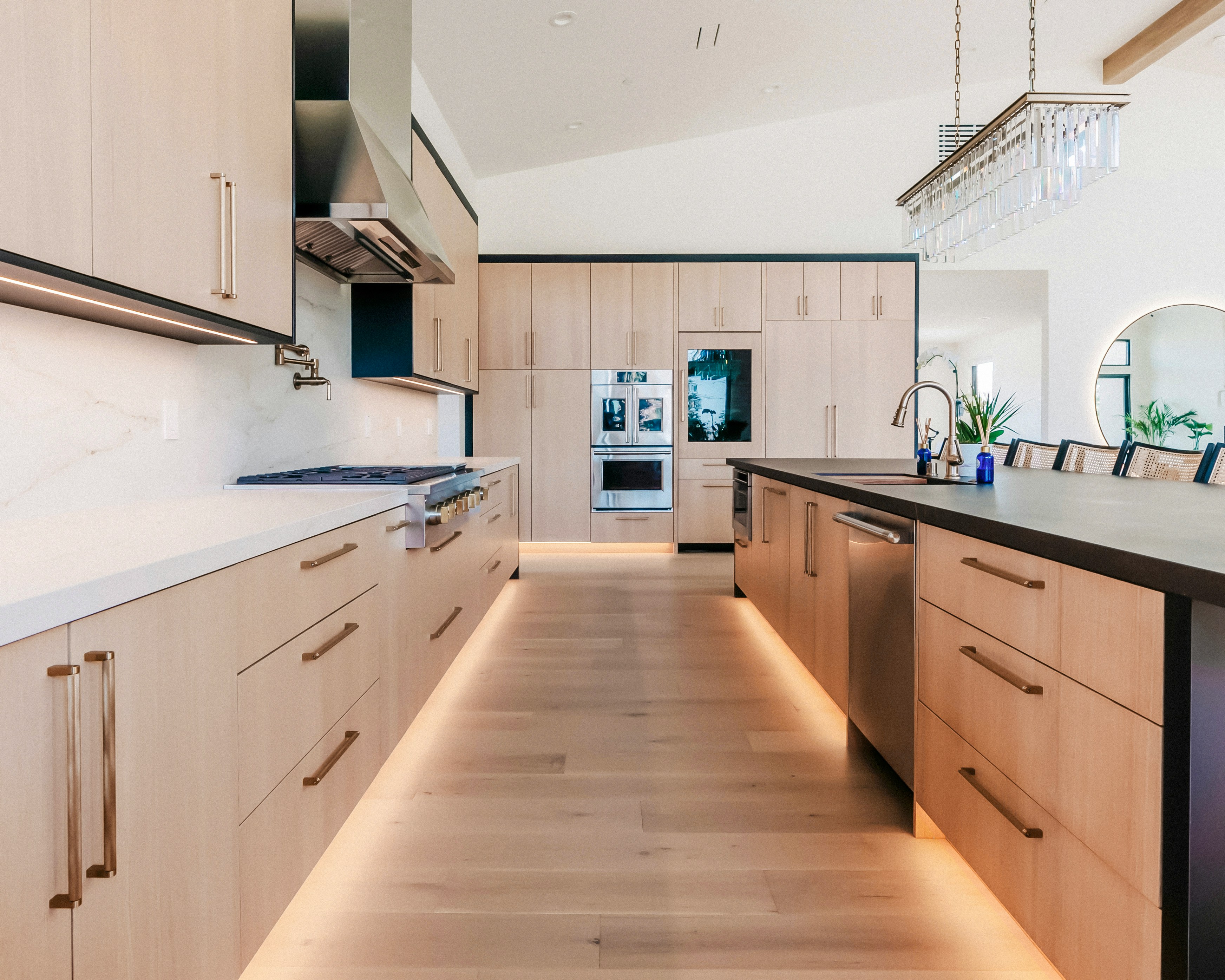
Take the kitchen photo from a corner or doorway so Gemini can see the main cabinet run, counters, flooring, and major fixtures. Keep the phone level. Turn on lights if the room is dark. Remove loose clutter such as dish towels, countertop gadgets, grocery bags, and trash cans. If the kitchen has a strong selling feature such as a window over the sink, a large island, or unusual ceiling detail, make sure it stays visible.
For desktop work, upload an existing image from your computer or phone. For mobile work, you can use a saved kitchen photo from your gallery or take a fresh picture directly in the Gemini app.
Step-by-step workflow
1. Decide what must stay fixed before you prompt Gemini
The best kitchen mockups come from clear limits. Write down what should not move. In many refresh projects that includes:
- window and door placement
- cabinet footprint
- sink location
- appliance positions
- room shape and ceiling lines
- main lighting layout
If you want a cosmetic refresh rather than a gut renovation, say that up front.
2. Run the first pass in Gemini with Nano Banana 2
Google's current Gemini image workflow uses Nano Banana 2 for image generation and editing. You can upload a current photo and ask Gemini to edit it, or upload multiple images to create a new image based on them. For paid subscribers, a close result can be regenerated with More > Redo with Pro for extra detail, especially with text-heavy visuals or infographic-style output.
Desktop web app path
- Open Gemini in your browser.
- Upload the kitchen photo.
- Paste the JSON prompt below.
- Ask for exactly three concepts.
- Review the first pass before doing any refinements.
Mobile Gemini app path
- Open the Gemini mobile app.
- Tap Add files.
- Choose Gallery to upload an existing kitchen photo or Camera to take a new one on the spot.
- Paste or dictate the same prompt.
- Submit and compare the first set of concepts.
{
  "task": "Create three realistic kitchen refresh concepts from one real kitchen photo before contractor quoting.",
  "property_context": "[home for sale, rental turnover, owner-occupied refresh, flip preparation]",
  "design_goal": "[light cosmetic refresh, listing-ready improvement, modern update, warmer and brighter look]",
  "must_preserve": [
    "room shape",
    "window and door placement",
    "appliance locations unless clearly requested otherwise",
    "cabinet footprint unless clearly requested otherwise",
    "sink location unless clearly requested otherwise",
    "ceiling height and layout"
  ],
  "concepts": [
    "light cosmetic refresh with paint and hardware changes",
    "midrange refresh with updated counters, backsplash, and fixtures",
    "higher-end refresh with a more polished listing-ready finish"
  ],
  "editing_rules": [
    "keep the kitchen photorealistic",
    "do not invent new windows or extra floor space",
    "do not hide visible defects behind convenient cropping",
    "keep cabinet and appliance scale believable",
    "make each concept clearly different but feasible"
  ],
  "output_request": "Generate 3 separate kitchen concept images from this exact photo and label each concept with a short plain-English title."
}
3. Choose the strongest concept before you ask for details
Do not refine all three. Pick the one that best matches your actual project. A quote conversation works better when everyone is reacting to one clear direction instead of six nearly identical variants.
Good signs:
- the layout still feels true to the original room
- cabinets, counters, and appliances look like they belong in the same space
- lighting and shadows still match the original photo
- the concept is something a contractor could reasonably discuss
4. Tighten the winning concept with a second targeted prompt
Once you choose the strongest option, ask Gemini to improve only that concept. Focus on finishes, not fantasy.
{
  "task": "Refine the selected kitchen concept without changing the room layout.",
  "selected_concept": "[paste the concept name Gemini used]",
  "changes_requested": [
    "make the cabinet finish slightly warmer",
    "reduce visual clutter on the counters",
    "improve backsplash detail",
    "keep lighting bright but realistic"
  ],
  "must_not_change": [
    "room shape",
    "window placement",
    "door placement",
    "major appliance positions",
    "overall camera angle"
  ],
  "output_request": "Return one refined image plus a short note listing the visible finish changes."
}
5. Use Redo with Pro only when the image is close
If the first result is almost right but the finish details still look soft, use More > Redo with Pro under the image if your plan includes it. This is most useful when cabinet lines, backsplash pattern, hardware, or label text needs to look cleaner. Do not jump to Redo with Pro too early. First get the concept direction right, then spend the extra refinement pass.
6. Turn the chosen image into a contractor-ready concept brief
After you save the winning image, ask Gemini for a short summary of the visible changes so you can send a clear note with the image. This is not a quote request yet. It is a concept summary.
{
  "task": "Summarize the selected kitchen concept in plain English for a contractor pre-quote conversation.",
  "goal": "Create a short concept brief based only on visible design changes.",
  "include": [
    "cabinet finish direction",
    "countertop direction",
    "backsplash direction",
    "fixture and hardware direction",
    "what appears to stay the same"
  ],
  "exclude": [
    "pricing",
    "construction promises",
    "building-code claims",
    "structural assumptions"
  ],
  "output_request": "Return a short paragraph plus a 5-item bullet list of likely discussion points for a contractor."
}
This gives you something practical to send with the image when you ask for early conversations or rough scope feedback.
7. Save the concept and the original together
Keep the original kitchen photo, the chosen concept image, and the short concept brief in one folder. Name them clearly. This makes it easier to compare what Gemini changed and easier to explain the idea later.
Tool-specific instructions
Gemini is the best fit here when you treat the task like controlled image editing rather than pure generation. Keep the existing room intact and ask for finish, material, color, and styling changes. Nano Banana 2 is the default first-pass tool for this workflow. Redo with Pro is the optional second pass when the result is close and needs better detail.
On desktop, the bigger screen makes it easier to compare cabinet lines, counter shapes, and lighting realism. On mobile, the fastest path is often to stand in the kitchen, take a fresh photo, and run the concept immediately.
Quality checks
Before you use the final image or concept brief, verify all of the following:
- the kitchen shape still matches the real room
- no impossible window, island, or floor-space changes appeared
- appliances and cabinets still look proportional
- the concept image does not hide known defects in a misleading way
- the written summary does not claim pricing, code compliance, or construction feasibility
Common failure modes and fixes
The kitchen suddenly looks larger than real life
Tell Gemini to preserve the exact room dimensions, camera angle, and cabinet footprint.
The style differences are too small
Ask for more contrast between the three concepts, such as lighter cosmetic, midrange, and premium listing-ready.
The image looks too glossy or fake
Ask for less showroom polish, more realistic lighting, and materials that suit an everyday residential kitchen.
Gemini changes fixtures you wanted to keep
List those items under must_preserve and repeat them in the follow-up prompt.
The concept brief starts sounding like a scope of work
Ask Gemini to describe visible design directions only and exclude pricing, code, permit, or structural language.
Sources Checked
- Google Gemini Apps Help, "Generate & edit images with Gemini Apps - Computer". Accessed 2026-03-21. https://support.google.com/gemini/answer/14286560?co=GENIE.Platform%3DDesktop&hl=en
- Google Gemini Apps Help, "Upload & analyze files in Gemini Apps - Android". Accessed 2026-03-21. https://support.google.com/gemini/answer/14903178?co=GENIE.Platform%3DAndroid&hl=en
- Unsplash Help Center, "Can I use Unsplash images for personal or commercial projects?" Accessed 2026-03-21. https://help.unsplash.com/en/articles/2612315-can-i-use-unsplash-images-for-personal-or-commercial-projects
- Unsplash Help Center, "What if there's a brand or identifiable person depicted in an image that I download?" Accessed 2026-03-21. https://help.unsplash.com/en/articles/2646379-what-if-there-s-a-brand-or-identifiable-person-depicted-in-an-image-that-i-download
Quarterly Refresh Flag
Review by 2026-06-19 to confirm Gemini menu wording, Nano Banana naming, subscription behavior for Redo with Pro, supported mobile upload options, and any changes to Unsplash usage guidance.
Related Workflows
How to Compare Budget, Midrange, and Premium Kitchen Finish Mockups With Gemini
Use Gemini to generate budget, midrange, and premium kitchen finish concepts from one photo so owners and sellers can compare renovation directions before pricing work.
How to Compare Contractor Repair Estimates Side by Side With AI
Upload two or three repair estimates and use AI to produce a plain-English comparison memo that surfaces scope differences, omissions, and questions to clarify.
How to Create Three Renovation Concepts From One Bathroom Photo With Gemini
Use Gemini on desktop or mobile to turn one bathroom photo into three clear renovation directions without losing the real room layout.
Help keep PromptedWork sharp
Share a broken step, outdated prompt, or general feedback. This is only for improving this specific workflow.