Plaud AI Tool Guide: When to Use Note Pro vs NotePin S
A practical Plaud guide for PromptedWork readers: what Plaud does, when to choose Note Pro versus NotePin S, and which real workflows fit each device.

Affiliate disclosure: Some links on this page are affiliate links. If you buy through them, PromptedWork may earn a commission at no extra cost to you.
Quick caution: Recording laws and workplace rules vary. Always get consent where required, follow your organization's policy, and avoid uploading sensitive material unless the workflow is approved for that use.
Problem this solves and who it is for
This page is for people who keep running into the same bottleneck at the start of an AI workflow: the useful information is still trapped inside a conversation, a walk-through, a kickoff call, a site visit, or a quick spoken recap.
Plaud is useful when the hard part is not drafting. The hard part is capture.
If your real work starts with spoken information and you do that often enough that your phone's built-in voice memo app feels flimsy, Plaud is worth a serious look. If you only need occasional transcription, it is probably optional.
What Plaud is
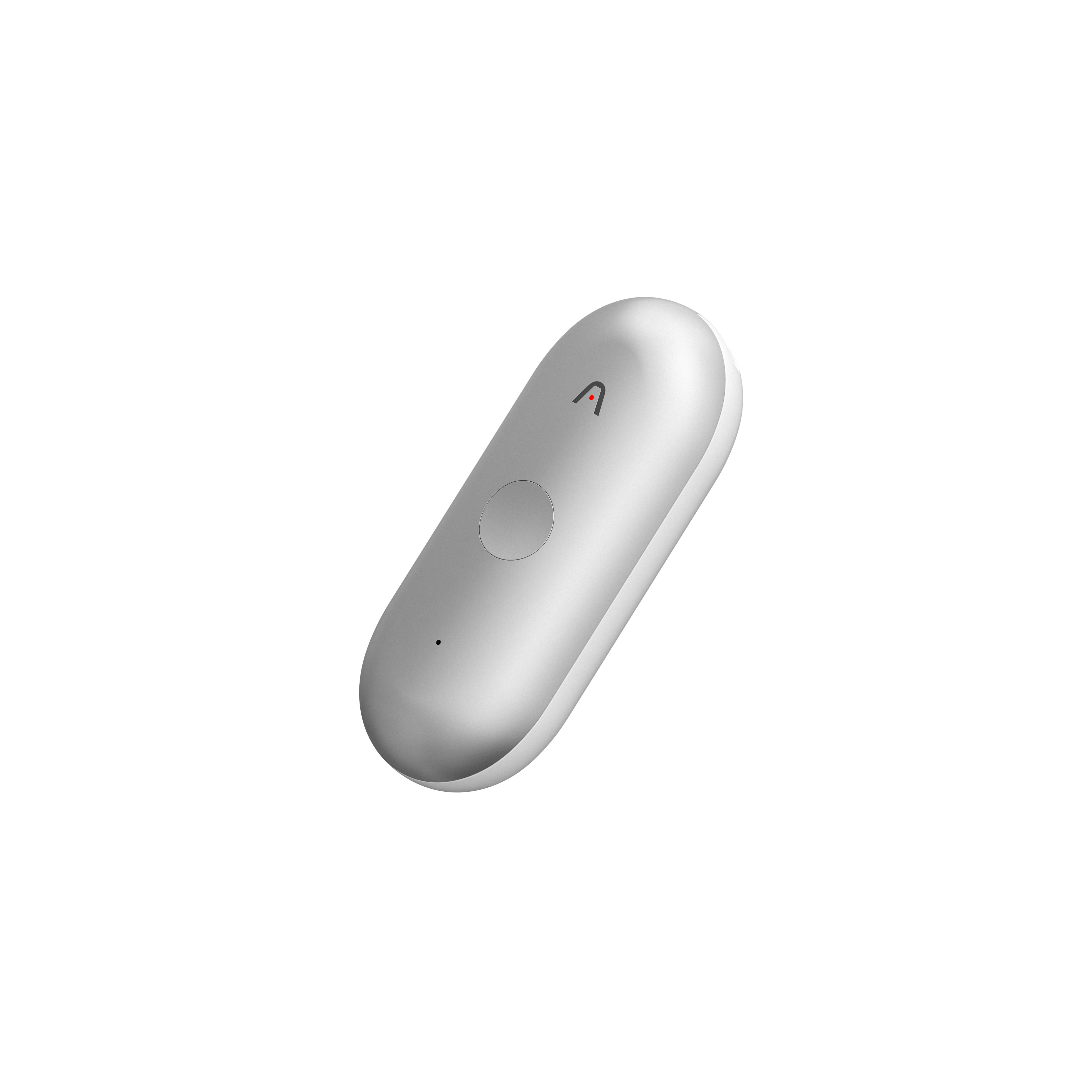
Plaud makes dedicated AI note-taking hardware and a connected app and web workflow that turns recordings into transcripts, summaries, notes, mind maps, and shareable outputs. For PromptedWork readers, the practical value is simple:
- Capture a conversation, memo, meeting, or walk-through.
- Let Plaud produce the first transcript and summary layer.
- Export or share that material into the tool that is best for the final deliverable.
That means Plaud is not the whole workflow. It is the capture and first-pass organization layer.
If you want Plaud, this is the best way to think about it: buy it because it improves the capture step in a workflow you repeat, not because you want another transcript tool.
Check current Plaud pricing and device options: Plaud affiliate link
Which Plaud device fits which workflow
This is the quick answer.
Choose Plaud Note Pro if your work looks like this
- Desk meetings and conference rooms
- Online meetings and longer seated sessions
- You want more battery headroom and stronger room capture
- You often turn meetings into summaries, action items, or follow-up documents
Choose Plaud NotePin S if your work looks like this
- Site visits and walk-throughs
- Coaching, classroom, or field-note capture
- You move between rooms or locations while recording
- You want a more hands-free way to capture spoken recaps and observations
One important caveat
If phone-call recording is your main reason for buying, compare against the standard Plaud Note before deciding. This page focuses on Note Pro and NotePin S because they are the strongest fit for many PromptedWork-style workflows, but call-heavy buyers should still compare the broader Plaud lineup.
Prerequisites
- A Plaud device if you want dedicated hardware capture.
- The Plaud app and Plaud web access.
- A clear policy for consent and sensitive information in your setting.
- One downstream destination for the final work product, such as ChatGPT, Claude, Gemini, NotebookLM, Google Docs, Notion, or your project manager.
How to capture or gather the source material
For Plaud Note Pro
Use Note Pro when the source starts in a room, at a desk, or in an online meeting. Plaud positions it for teams and professionals needing clarity in larger spaces, and its current guide highlights long battery life, structured summaries, action items, and support for Plaud Desktop in Zoom, Teams, and Google Meet workflows.

Good PromptedWork-style examples:
- meeting recap to decision memo
- kickoff call to milestone plan
- strategy call to messaging pack
- webinar or lesson recording to derivative content
For Plaud NotePin S
Use NotePin S when your best notes happen while moving. Plaud positions it as hands-free capture with four included accessories, and its current product page highlights the tactile record button plus the ability to mark key moments during recording.

Good PromptedWork-style examples:
- site visit walkthrough to quote email
- owner voice memo to staff SOP
- post-class memo to reteach plan
- location scout memo to shoot-day brief
Basic capture rules that matter more than the device
- Start the recording with context. Say what the conversation is, what the output needs to become, and who it is for.
- Keep one recording tied to one job whenever possible.
- Use highlights when a decision, deadline, or action item comes up.
- Add one supporting source later if the final output needs grounding, such as the signed scope, agenda, lesson objective, or quote template.
- If you are using NotePin S on the chest, read Plaud's pacemaker caution first. The product page says users with pacemakers should avoid wearing NotePin S on the chest because of magnetic components.
Step-by-step workflow
1) Choose the device based on capture friction, not novelty
Choose Note Pro when the source starts in a room, at a desk, or inside an online meeting. Choose NotePin S when the friction is physical movement, not software setup.
2) Record a clean first-pass source
State the purpose at the beginning. Good examples:
- "Client site visit for exterior signage quote."
- "Kickoff call for April website rebuild."
- "End-of-day owner memo for opening checklist changes."
- "Post-class reflection on fractions lesson."
That one sentence improves downstream summaries.
3) Use highlights when something important happens
Plaud's current Note Pro guide says a short press can mark key moments so the AI focuses on the most important parts of the final summary. Use that for decisions, due dates, blockers, budget limits, and next actions.
4) Let Plaud create the transcript and first-pass summary
Do not stop at the raw transcript. Review the transcript and Plaud summary together. Fix obvious names, dates, or misheard terms before exporting.
5) Export the right output for the next tool
Plaud's current export documentation says you can export audio, transcripts, notes, and mind maps. For most PromptedWork readers, the most useful handoff is one of these:
- transcript plus notes into ChatGPT or Claude for drafting
- transcript plus one supporting source into NotebookLM for grounded synthesis
- notes directly into your project manager, CRM, or internal doc
6) Choose the next tool based on the final deliverable
Use Plaud to capture and structure. Use a second tool to finish the job.
- NotebookLM is best when the final output needs to stay grounded in source material.
- ChatGPT is strong for fast drafting, rewrite passes, SOP cleanup, and email output.
- Claude is strong when you want controlled long-form synthesis from transcripts and supporting documents.
- Gemini is useful when you are staying in a Google-heavy workflow and moving quickly across phone and desktop.
Tool-specific instructions
Plaud Note Pro
Use Note Pro when you want the cleanest desk or room capture path. Plaud currently positions it for larger spaces, and the current guide says it can record for up to 50 hours continuously, generate structured summaries and action items, and work with Plaud Desktop for online meetings.
Best PromptedWork matches:
For workflow examples, jump to Workflow articles on PromptedWork where Plaud fits naturally below.
Plaud NotePin S
Use NotePin S when you want the least awkward capture step. Plaud currently positions it as hands-free capture with four included accessories. The product page highlights the lanyard, wristband, clip, and magnetic pin, plus the tactile button for starting recording and marking important moments.
For workflow examples, jump to Workflow articles on PromptedWork where Plaud fits naturally below.
Plaud Desktop
Plaud's current Note Pro guide says Plaud Desktop can capture system audio directly for Zoom, Microsoft Teams, and Google Meet so you do not need to invite a bot into the meeting room. That makes it one of the cleaner Plaud workflows for recurring online meetings.
Share, export, and automation
Plaud's current support docs show three practical post-capture paths:
- Export Files: export audio, transcripts, notes, and mind maps.
- Share Link: choose a public share link or an invite-only email-gated link.
- AutoFlow: automatically trigger transcript and note generation when recordings sync or upload, plus actions like sending notes by email.
For PromptedWork readers, this matters because it lets you decide whether Plaud should end the workflow or simply hand off to the next step.
Workflow articles on PromptedWork where Plaud fits naturally
These are not random placements. They are the cleanest matches for Plaud-style capture:
Local business owners
Operations and owner workflows
Freelancers and consultants
Educators and coaches
Privacy, consent, and sensitive-use cautions
This part matters.
Plaud's current official guidance says to let others know and get their okay before recording, and to be mindful of privacy and local laws. Treat that as your minimum baseline, not as legal advice.
For practical use:
- Do not record people quietly if your setting requires consent.
- Do not upload sensitive content just because the tool technically can handle it.
- Use the invite-only share option instead of a public link when the content is not meant for open circulation.
- If you work in healthcare, legal, education, or another regulated setting, check your organization's approved workflow before using any external AI transcription pipeline.
Plaud's support center says the company has ISO/IEC 27001, ISO/IEC 27701, GDPR, SOC 2, and HIPAA-related certifications or compliance claims. That is useful context, but it does not replace your own internal approval process.
Copy and paste prompt blocks
ChatGPT or Claude prompt for turning an exported Plaud transcript into a usable draft
{
  "task": "Turn the attached Plaud transcript and summary into a work-ready first draft.",
  "context": {
    "source_type": "Plaud transcript export",
    "intended_output": "decision memo, SOP, quote email, recap, or project brief"
  },
  "rules": [
    "Use only the facts stated in the attached transcript and summary.",
    "Preserve names, dates, quantities, and next actions exactly if they are present.",
    "If something is unclear, flag it under 'Needs review' instead of inventing details.",
    "Keep the final output practical and ready for editing."
  ],
  "required_output": [
    "Clean draft",
    "Key decisions or takeaways",
    "Open questions",
    "Needs review"
  ]
}
NotebookLM prompt for a source-grounded output using a Plaud transcript plus one supporting file
{
  "task": "Use the Plaud transcript and the supporting source in this notebook to create a grounded work output.",
  "goal": "Produce a usable output that stays tied to the uploaded sources.",
  "instructions": [
    "Use the transcript as the main source and the supporting file to confirm scope, sequence, or constraints.",
    "Do not invent facts that are not supported by the uploaded material.",
    "Pull out explicit actions, decisions, blockers, and deadlines."
  ],
  "required_output": [
    "Short summary of the source situation",
    "Main output draft",
    "Evidence-backed action list",
    "Unclear items that need human review"
  ]
}
Quality checks
- The device choice actually matches the capture environment.
- The transcript was reviewed before export.
- The final output is based on the recording, not generic AI filler.
- Sensitive content is not being shared with the wrong link type.
- Plaud is being used for repeated real work, not as a novelty purchase.
- If phone-call capture is your main use case, you compared it against the standard Plaud Note before buying.
Common failure modes and fixes
Failure mode: You buy the wrong Plaud device
Fix: Start with the capture context. If you work mostly in motion, NotePin S makes more sense. If you work in rooms, on calls, and in online meetings, compare Note Pro against the standard Note before deciding.
Failure mode: The summary is too generic
Fix: Add context at the beginning of the recording, use highlights during important moments, and pair the transcript with one supporting source when the final output needs grounding.
Failure mode: You try to publish directly from Plaud output
Fix: Use Plaud as the first-pass capture and organization layer. Move the exported material into the tool that matches the final deliverable.
Failure mode: You use the wrong sharing option
Fix: Use invite-only email-gated sharing for sensitive material. Use public share links only for low-risk content.
Failure mode: You assume certifications mean automatic approval in your workplace
Fix: Treat certifications as context, not permission. Follow your own organization's privacy, retention, and approval rules.
FAQ
Is Plaud worth it for PromptedWork-style workflows?
Yes, when the workflow starts from spoken material and you repeat that capture job often enough that the recording step is a real bottleneck. No, if you only need occasional transcription.
Which Plaud device should most PromptedWork readers look at first?
Start with Note Pro if your work happens at desks, in meetings, or online. Start with NotePin S if your work happens while moving.
Is Note Pro the best Plaud device for phone-call recording?
Not automatically. Plaud currently positions the standard Plaud Note as ideal for hybrid work, calls, and meetings anywhere. If phone-call capture is your main reason for buying, compare that model before you choose.
Can I export Plaud content into other tools?
Yes. Plaud's current support docs say you can export audio, transcripts, notes, and mind maps. That is one of the main reasons it fits PromptedWork workflows.
Does Plaud support safer sharing options than a public link?
Yes. Plaud's current share documentation says you can use a public share link or an invite-only email-gated link, and invite-based sharing can track who viewed it.
Can Plaud automate part of the workflow after sync?
Yes. Plaud's current AutoFlow documentation says it can automatically trigger transcript and note workflows when recordings sync or upload, and can perform actions such as sending notes by email once summaries are ready.
Should you buy Plaud?
Buy Plaud if all three of these are true:
- Your workflow often starts with spoken information.
- The capture step is messy enough that you keep losing value before drafting starts.
- You will use the device repeatedly in real work, not just once in a while.
Skip it if your source material already starts as clean digital text, PDFs, spreadsheets, or structured notes most of the time.
See current Plaud options and pricing: Plaud affiliate link
Sources Checked
- https://www.plaud.ai/blogs/news/which-plaud-product-is-right-for-you-a-complete-guide-to-the-plaud-lineup
- Accessed: 2026-04-05
- https://www.plaud.ai/blogs/articles/how-to-use-plaud-note-pro
- Accessed: 2026-04-05
- https://www.plaud.ai/pages/plaud-notepin-s
- Accessed: 2026-04-05
- https://www.plaud.ai/pages/shop-plaud
- Accessed: 2026-04-05
- https://support.plaud.ai/hc/en-us/articles/10447909233039-Is-the-Starter-Plan-free-every-month
- Accessed: 2026-04-05
- https://support.plaud.ai/hc/en-us/articles/50835453223705-Export-Files
- Accessed: 2026-04-05
- https://support.plaud.ai/hc/en-us/articles/51023340108185-Share-Link
- Accessed: 2026-04-05
- https://support.plaud.ai/hc/en-us/articles/51885855749785-AutoFlow
- Accessed: 2026-04-05
- https://support.plaud.ai/hc/en-us/articles/52161613185561-What-certifications-has-Plaud-achieved
- Accessed: 2026-04-05
- https://www.plaud.ai/pages/plaud-intelligence
- Accessed: 2026-04-05
Quarterly Refresh Flag
Review this page by 2026-07-04. Re-check device positioning, pricing, plan limits, export options, sharing rules, certification claims, and any new Plaud Desktop or automation changes before refreshing.
Related Workflows
How to Turn a Site Visit Note Into a Professional Quote Email With AI
Turn site visit notes, dictated observations, or a recorded walk-through into a structured scope summary and quote email before field details get lost.
How to Turn a Voicemail or Phone Call Note Into a Written Service Quote With AI
Use AI to turn rough call notes or a voice recording into a clean quote draft and customer email without retyping everything by hand.
Help keep PromptedWork sharp
Share a broken step, outdated prompt, or general feedback. This is only for improving this specific workflow.